Version Control for QA
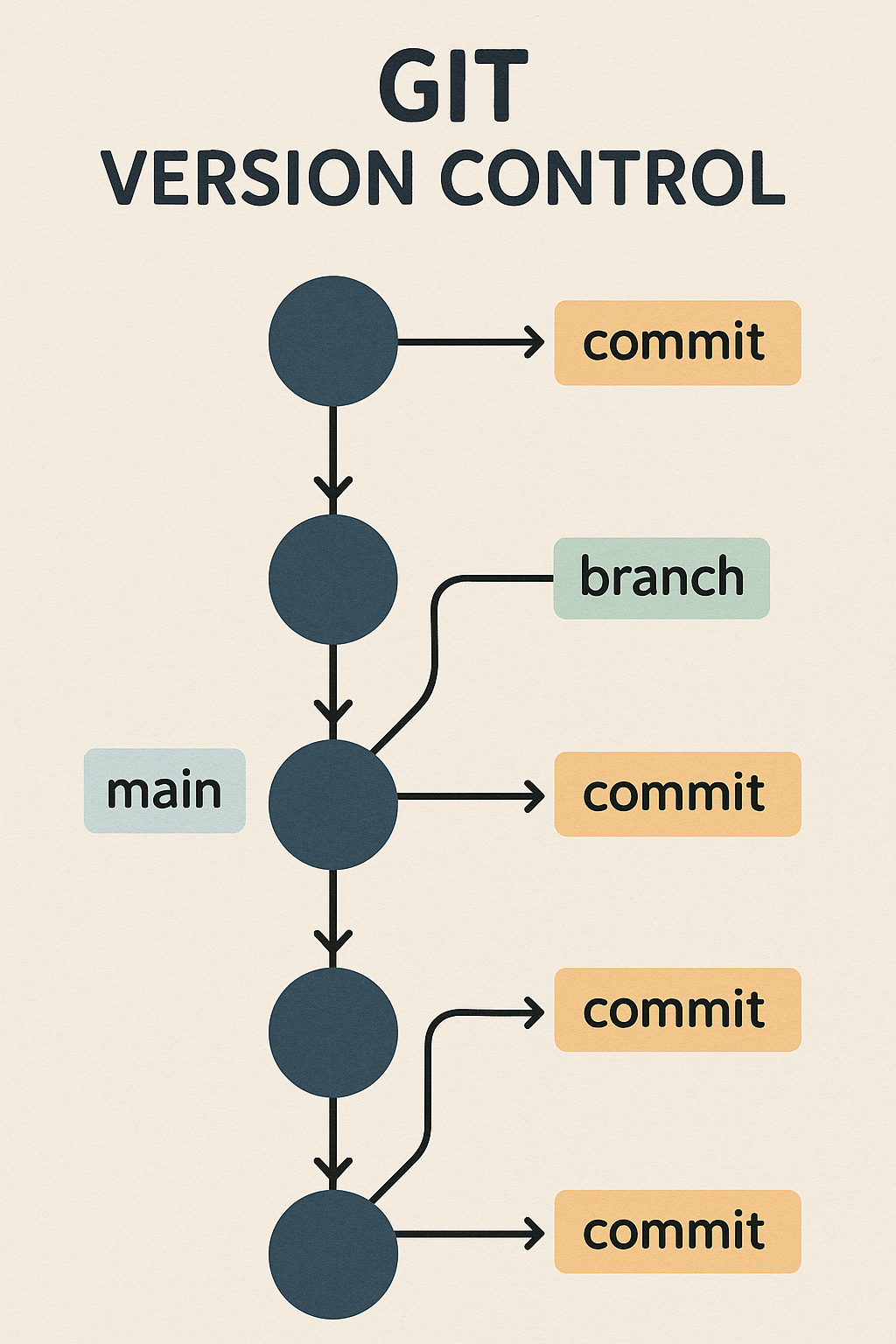
- Version control is a system that helps track and manage changes to code, documents, and configuration files over time. It allows multiple people to collaborate efficiently, provides a history of changes, and helps in maintaining different versions (branches) of a project.
-
For Quality Assurance (QA) teams, version control is essential because:
-
QA often requires access to different versions of the code for testing.
-
Automated tests, test scripts, and documentation need to be tracked similarly to source code.
-
It ensures that QA efforts align with developer releases by tracking versions.
-
-
The most common version control tool is Git, a distributed system that enables collaboration between developers, QA teams, and release managers.
Why QA Teams Need Version Control
-
Traceability - Track which code changes introduced bugs.
-
Parallel Testing - Test different versions of the software using branches.
-
Documentation - Maintain consistent test plans and automation scripts.
-
Collaboration - Work on test cases or automation code alongside developers.
-
Rollback - Easily revert to a previous version if the latest release causes problems.
What is Git
- Git is a distributed version control system that allows teams to manage code versions locally and remotely. With Git, every team member has a local copy of the repository, and changes are synchronized between team members through commits and pushes to a central or shared repository. ie: GitHub or GitLab.
Key Git Concepts
-
Repository (Repo) - A folder that contains all files, code, and version history.
-
Branch - A separate line of development or testing. QA teams can create branches to test isolated versions without affecting the main code.
-
Commit - A snapshot of changes made to the files.
-
Pull - Retrieve the latest changes from a remote repository.
-
Push - Send local changes to the remote repository.
-
Merge - Integrate changes from one branch into another. ie: From a test branch into the main branch.
Git Workflow for QA Teams
- Cloning a Repository - QA teams clone the developer’s repository to get a local copy. This creates a local copy of the project for testing.
git clone <repository-url>
- Creating a New Branch for Testing - QA can create separate branches for testing features, releases, or bug fixes. The new branch ensures isolated testing without interfering with the main code.
git checkout -b testing-feature-branch
- Making Changes or Adding Test Scripts - QA members can write new test scripts or edit automation code.
git add test_automation_script.py
git commit -m "Added automation script for feature X"
- Pushing Changes to Remote Repository - QA can push their changes for other team members to access.
git push origin testing-feature-branch
-
Creating a Pull Request (PR) - A PR allows QA to request that changes or scripts be reviewed and merged into the main branch. QA can add comments and attach reports to the PR for developers to review.
-
Merging and Testing the Main Branch - After merging, QA pulls the latest changes and verifies that everything works.
git pull origin main
- Tagging Releases - QA can create tags to mark a stable release version. ie: v1.0.0.
git tag v1.0.0
git push origin v1.0.0
Essential Git Commands QA Should Know
| Command | Description |
|---|---|
| git clone [url] | Clone a repository to your local system. |
| git status | Check the status of your files (modified, staged, etc.). |
| git add [file] | Stage changes for a commit. |
| git commit -m "message" | Save a snapshot with a descriptive message. |
| git push origin [branch] | Push local changes to the remote branch. |
| git pull origin [branch] | Fetch and merge changes from the remote branch. |
| git checkout [branch] | Switch to a different branch. |
| git merge [branch] | Merge another branch into the current branch. |
| git tag [tagname] | Create a tag to mark a release version. |
Hands-On Git Example
Setting Up a Testing Branch
- Scenario - Test a New Feature in Isolation, A developer pushes new code to the main repository, and QA needs to test it.
- Step 1 - Clone the Repository
git clone https://github.com/your-org/your-repo.git

cd your-repo
- Step 2 - Create a New Testing Branch
git checkout -b qa-new-feature-test
- Step 3 - Make Changes. ie: Add Test Cases.
echo "Automated test case for feature X" > test_case.txt

git add test_case.txt

git commit -m "Added test case for feature X"
- Step 4 - Push Changes to Remote Repository.
git push origin qa-new-feature-test
- Step 5 - Create a Pull Request (PR). Go to GitHub or GitLab, open the repository, and create a PR from qa-new-feature-test to the main branch. Add comments explaining the testing process and attach any necessary logs or screenshots.
- Step 6 - Merge and Test Main Branch. After the PR is approved and merged, switch back to the main branch.
git checkout main

git pull origin main
QA now validates the merged code and ensures it works as expected.
Collaboration with Developers and Testers
-
Git helps QA teams collaborate with developers seamlessly:
-
Shared visibility - Everyone can track what changes are under testing.
-
Branching strategy - Different branches can be assigned to QA for testing features or hotfixes.
-
Continuous Integration (CI) - Automated test pipelines can be integrated with Git to run tests whenever a new commit is pushed.
-
Using GitHub / GitLab for QA
-
Many organizations use GitHub or GitLab for version control. Both platforms provide:
-
Provide web-based UIs to track branches, commits, and pull requests.
-
Allow teams to assign reviewers and manage issues directly from the repository.
-
Integrate with tools like Jenkins, Selenium, or Cypress to run automated tests on every commit.
-
Module Review
Click to start the definition to term matching quiz
Click to start the multiple choice quiz
Score: : 0 / 17 [0.00 %]
Question 1 of 17: What is a 'commit' in Git?