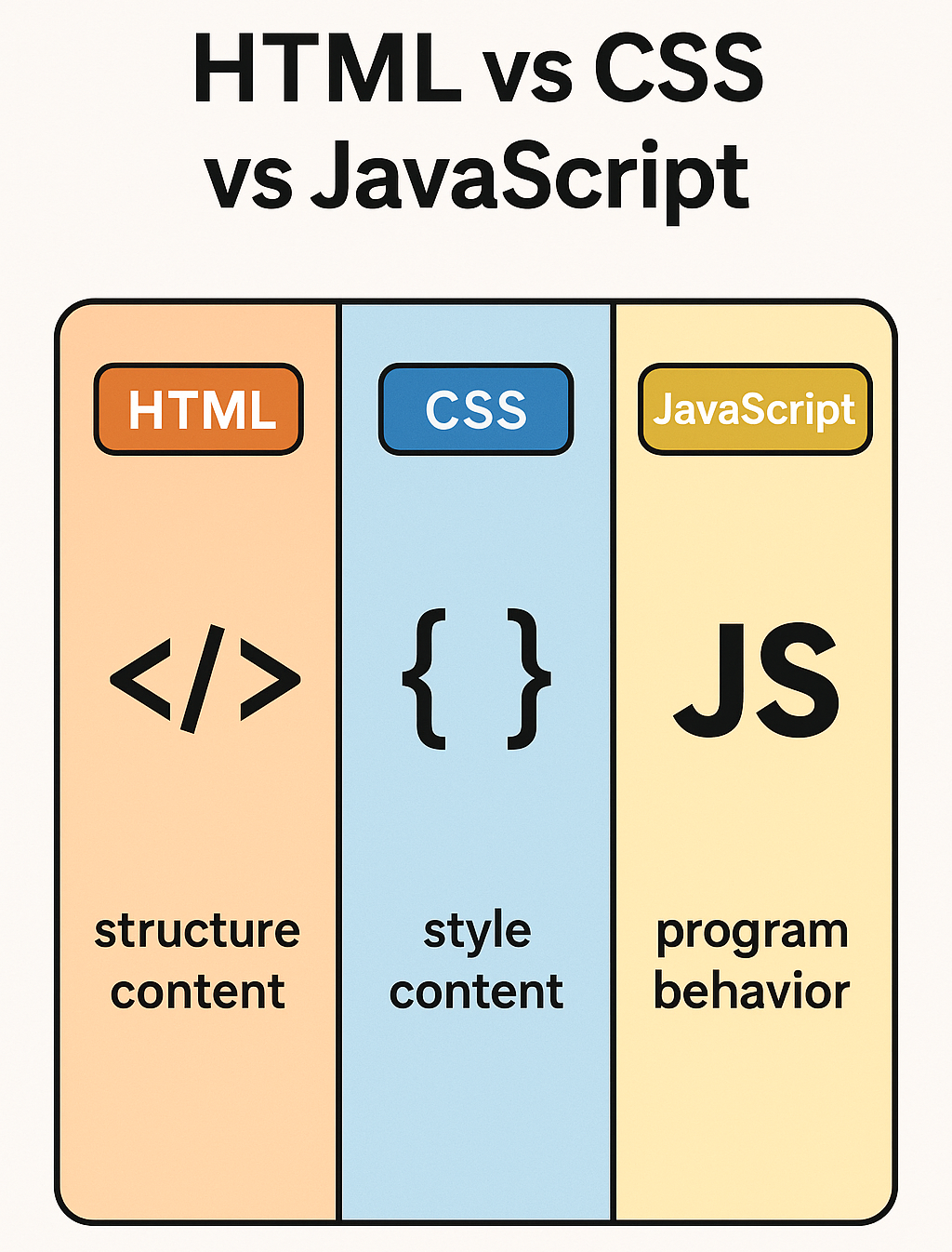
HTML vs CSS vs JavaScript
HTML Basics for Testing
- HTML (HyperText Markup Language) is the structure of web pages. Testers need to understand how elements are organized to locate them for functional testing. ie: Selenium or Cypress.
Key HTML Elements for Testing
Tags
<div></div>
<span></span>
<input />
<button></button>
Attributes
- id - A unique identifier for an element.
<div id="header"></div>
- class - A reusable CSS class.
<button class="btn-primary"></button>
- name - Often used with forms.
<input name="username" />
data - Custom attribute name used for testing.
<div data-test-id="menu-item"></div>
Example
<form id="loginForm">
  <input type="text" name="username" id="username" />
  <input type="password" name="password" id="password" />
  <button type="submit">Login</button>
</form>
Use id and data attributes to create more stable selectors.
Why use id attributes
-
Uniqueness - id values are supposed to be unique in the DOM, which makes them reliable selectors for identifying specific elements.
-
Performance - Browsers and testing tools can locate elements by id faster than by complex CSS or XPath selectors.
-
Clarity - An id="submit-button" clearly indicates the purpose of the element, improving test readability.
Why use data attributes
-
Custom and Descriptive - You can define attributes like data-testid="login-button" without affecting layout or functionality.
-
Decoupled from CSS - These attributes aren't typically used for styling or behavior, so changes in UI/UX are less likely to break them.
-
Safe from Refactors - Designers might change class names or layout frequently. data attributes stay unchanged unless intentionally modified.
-
Semantic Free - You're not mixing visual (CSS classes) or behavioral (JS events) semantics with testing logic.
What to avoid
-
Class-based selectors - ie: .btn.btn-primary because they often change with design tweaks.
-
Text-based selectors - ie: contains('Submit') because the text may change due to localization or copy updates.
-
Deep or brittle selectors - ie: div > ul > li:nth-child(2) as any structure change breaks the test.
Example
<!-- Good -->
<button id="submitBtn" data-testid="submit-button">Submit</button>

<!-- In your test -->
cy.get('#submitBtn').click(); // Fast and unique
cy.get('[data-testid="submit-button"]').click(); // Stable across UI changes

<!-- Bad -->
cy.get('.btn.btn-primary').click(); // Might break if styling changes
CSS Basics for Testing
-
CSS (Cascading Style Sheets) handles the styling of web pages. While it doesn’t directly affect functionality, testers should know how it impacts the list below.
-
Element visibility (display: none, visibility: hidden).
-
Layout bugs (margin, padding, positioning).
-
States (hover, active, focus).
-
CSS Selectors Useful for Testing
-
ID selector - #header targets elements with id="header".
-
Class selector - .btn-primary targets elements with class="btn-primary".
-
Attribute selector - [type="text"] selects all text inputs.
Example
<!DOCTYPE html>
<html lang="en">
<head>
  <meta charset="UTF-8">
  <title>Selector Example</title>
  <style>
    /* ID selector */
    #header {
      font-size: 24px;
      font-weight: bold;
      margin-bottom: 20px;
    }

    /* Class selector */
    .btn-primary {
      background-color: blue;
      color: white;
      padding: 10px 15px;
    }

    /* Attribute selector */
    [type="text"] {
      border: 2px solid gray;
      padding: 5px;
    }
  </style>
</head>
<body>

  <!-- ID selector -->
  <div id="header">Welcome to Selector Demo</div>

  <!-- Class selector -->
  <button class="btn-primary">Click Me</button>

  <!-- Attribute selector -->
  <input type="text" placeholder="Enter your name" />
  <input type="password" placeholder="Enter your password" />

</body>
</html>
CSS affects dynamic visibility. Make sure to test for hidden elements, hover states, and responsive layouts.
JavaScript Basics for Testing
- JavaScript (JS) provides interactivity in web applications. Understanding JS is essential for testing dynamic content, form validation, and user interactions.
Common JS Concepts for Testers
-
DOM Manipulation - JS can add or remove HTML elements dynamically.
-
Event Listeners - Actions like click, submit, and input are registered to elements.
-
Validation and Alerts - JS handles client-side validation and user feedback. ie: alert().
-
APIs and Asynchronous JavaScript - JS fetches data asynchronously, so testers need to validate both API calls and their UI responses.
Example
// Event Listeners
document.getElementById("todosForm").addEventListener("submit", (e) => {
  e.preventDefault(); // Prevents page reload

  // Asynchronous JavaScript
  fetch("https://jsonplaceholder.typicode.com/todos/1")
    .then((response) => response.json())
    .then((json) => console.log(json));

  // Client side alert
  alert("Todos submitted");
});
Tools like Selenium and Cypress simulate events, so you need to verify both client-side and server-side interactions.
Client-side using Cypress
cy.get("button#save").click();
cy.contains("Saved successfully").should("be.visible"); // UI confirmation
Server-side using Cypress
cy.intercept("POST", "/api/users").as("createUser");
cy.get('input[name="name"]').type("John Doe");
cy.get("button#submit").click();
cy.wait("@createUser").its("response.statusCode").should("eq", 201);
How Testing Tools Leverage HTML, CSS, JS
- Selenium / WebDriver - Locates elements by id, class, or XPath.
driver.findElement(By.id("username")).sendKeys("testUser");
- Cypress - Works well with JS-heavy apps.
cy.get("#loginForm").submit();
- Testing Dynamic Changes - Verify that elements appear or change when triggered by JS (Layout changes or Asynchronous JavaScript requests).
Understanding HTML, CSS, and JS
- A solid grasp of these basics will improve your ability to write effective automated and manual test cases for modern web applications.
Key Activites for testers
-
Locate elements accurately with HTML.
-
Identify layout and visibility issues with CSS.
-
Verify dynamic behavior driven by JavaScript.
Module Review
Click to start the definition to term matching quiz
Click to start the multiple choice quiz
Score: : 0 / 25 [0.00 %]
Question 1 of 25: What does HTML stand for?